Import
Anime Import is where you review anime import work that needs a decision — the page appears only while that work is pending.
- To access: Anime → Import in the left sidebar — only visible when pending work exists
- To view: Requires
resolveImportslibrary permission - Also visible to: Also require
manageCatalogSettingsormanageSystemSettings
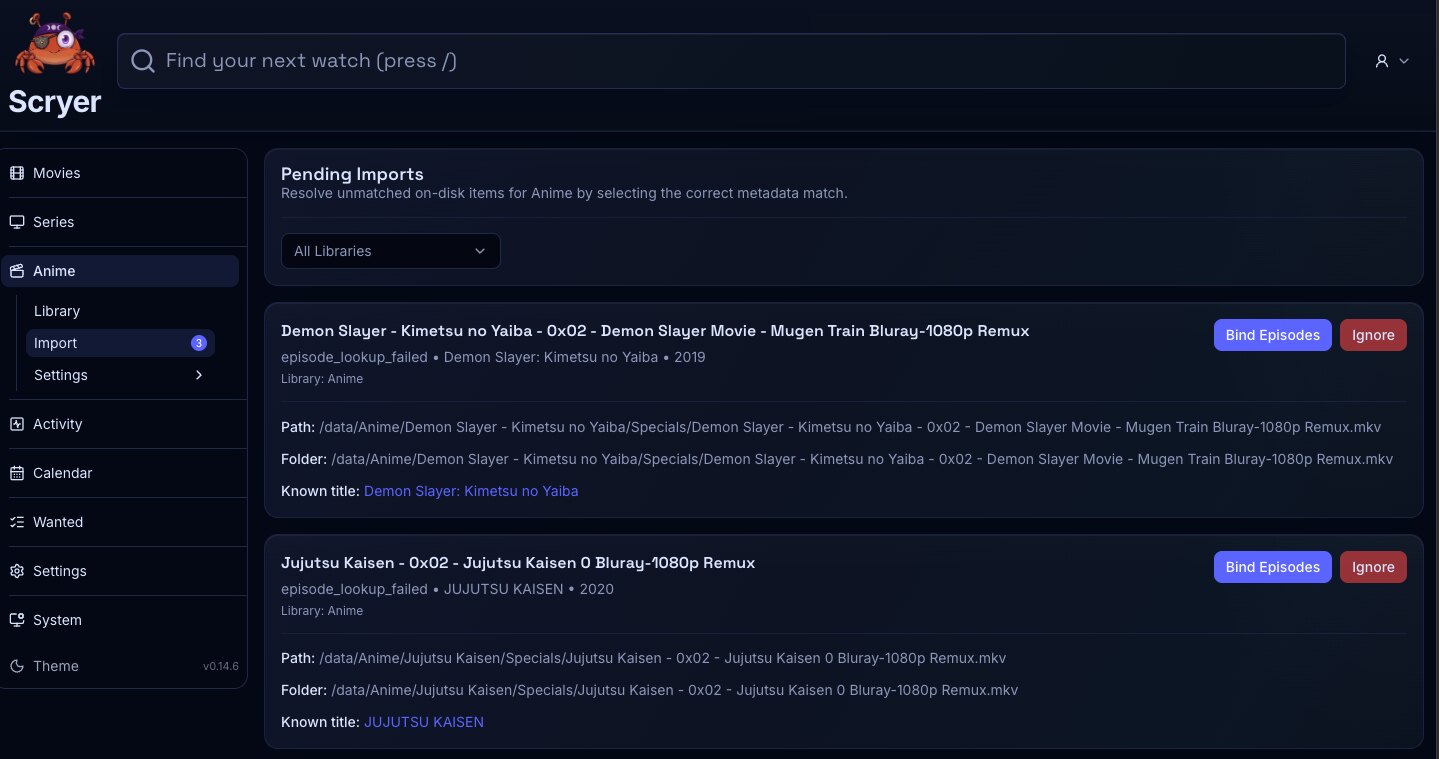
(Click to Zoom Image)
Open Original
Resolving Import Rows
Section titled “Resolving Import Rows”If a downloaded anime episode isn’t landing in the library, check this queue for rows waiting on a match decision before looking elsewhere.
If specials or inter-season episodes are mapped to the wrong season or episode number, correct the assignment here before confirming — placement follows what you approve.
If rows keep reappearing, check root path configuration and folder permissions before re-resolving.
- Review the source path and proposed anime episode match.
- Correct the title, season, episode, special, recap, or multi-episode mapping where the row surfaces it.
- Review the destination and rename outcome before confirming a row.
- Match a completed local file to the correct anime title and episode.
- Resolve a special or recap episode when Scryer needs confirmation.
- Hold a row until you’ve corrected the library root or naming issue.
- Confirm the row leaves the queue, then verify the title or episode shows the expected state in the title overview or Activity History.
Related Concepts
Section titled “Related Concepts”- Anime Library — overview of all anime titles; the place for title-level follow-up after import
- Activity Import — cross-facet import queue for reviewing a row alongside other pending imports
- Anime Renaming Settings — templates that control how imported anime files and episodes are named and organized
- Activity History — durable log confirming whether an import completed and what path was chosen