Plugins
Plugins are how you extend Scryer. They add provider capabilities to the app, and the provider settings pages turn those capabilities into configured local connections.
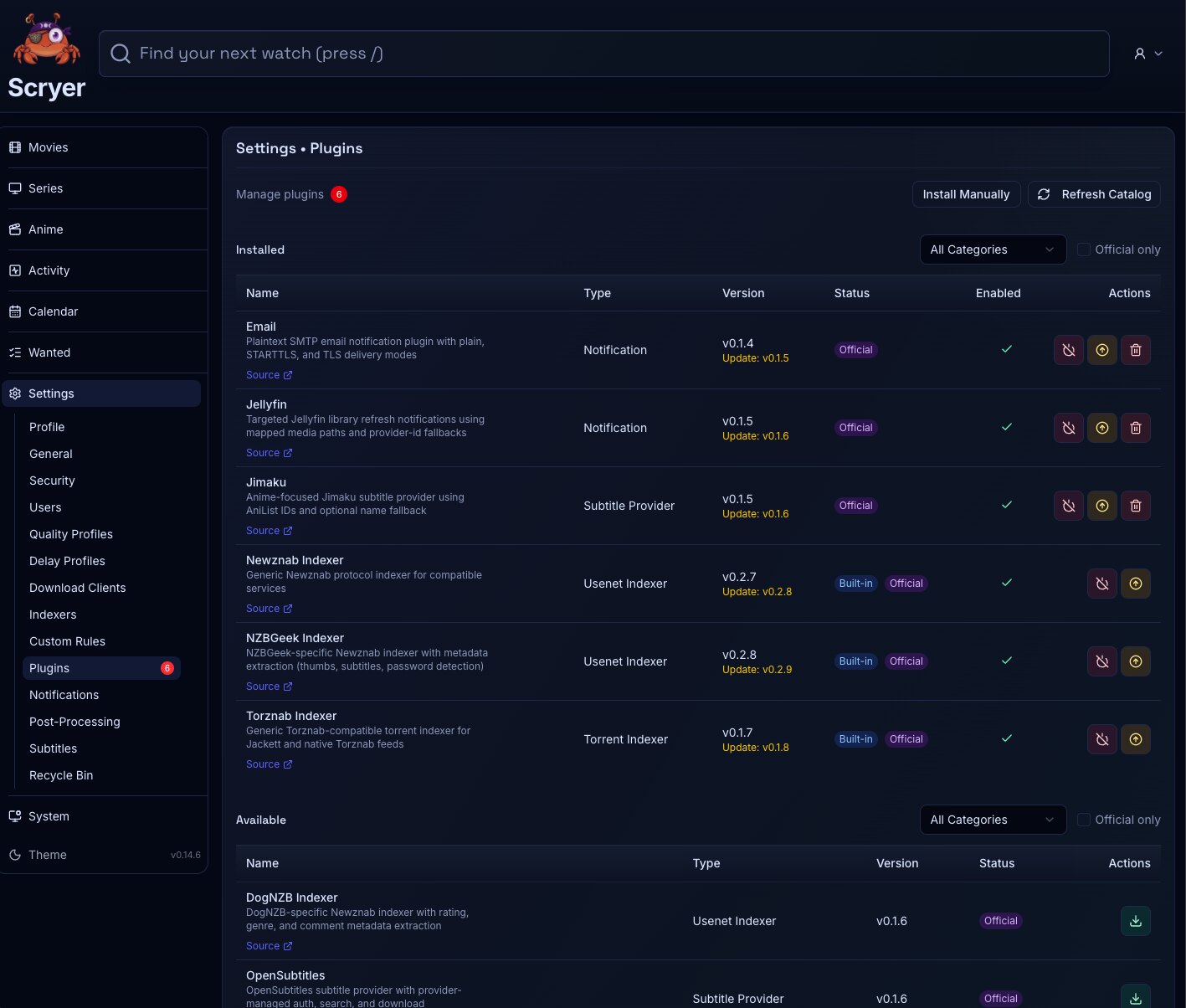
What This Page Covers
Section titled “What This Page Covers”Use this page to understand the plugin model itself: which plugin kinds exist, how built-in and installed packages differ, what Scryer means by official and community support tiers, and how manual installs fit into plugin development.
Use Settings > Plugins when you’re doing the actual install, upgrade, revert, disable, or uninstall work.
Plugin Kinds
Section titled “Plugin Kinds”Scryer currently recognizes four plugin kinds:
- Indexer plugins add provider types that you configure in Settings > Indexers.
- Download client plugins add provider types that you configure in Settings > Download Clients.
- Notification plugins add provider types that you configure in Settings > Notifications.
- Subtitle provider plugins add provider types that you configure in Settings > Subtitles.
Each plugin kind contributes runtime behavior plus the field metadata Scryer needs to render the matching configuration form. Installing a plugin doesn’t create a usable provider entry by itself; it makes a provider type available so you can configure one or more provider instances afterward.
For example, installing a notification plugin can make a new notification provider type available, but you still need to create a notification channel with its own name, credentials, and event subscriptions.
Capability Vs Configuration
Section titled “Capability Vs Configuration”Scryer keeps plugin capability separate from local configuration:
- A plugin supplies code, provider metadata, compatibility information, and form fields.
- A provider type is the selectable capability surfaced by that plugin.
- A configured provider instance is your local record for one use of that provider type.
That split is why the plugin page and the provider settings pages answer different questions. The plugin page is about what code is available in the instance. The provider pages are about which concrete connections, accounts, and policies you’ve configured on top of that code.
The Three Labels That Matter
Section titled “The Three Labels That Matter”Three different labels shape how a plugin behaves in Scryer:
| Label | Example values | What It Indicates |
|---|---|---|
| Plugin kind | indexer, download client, notification, subtitle provider | Which category of provider capability the plugin adds. |
| Source kind | bundled, downloaded, manual | How this installation entered the instance. |
| Support tier | official, verified community, unverified | The trust and maintenance signal Scryer surfaces for that package. |
These labels are easy to blur together, especially around built-in and community plugins.
Built-In Vs Official Vs Community
Section titled “Built-In Vs Official Vs Community”Built-in, official, and community are related, but they are not synonyms.
Built-In
Section titled “Built-In”A built-in plugin ships directly with the Scryer application. This is a packaging decision: the plugin is already present before the instance downloads anything from the catalog.
Built-in plugins are useful when Scryer needs a known baseline capability immediately after installation or upgrade.
Official
Section titled “Official”An official plugin is a first-party plugin published through Scryer’s official plugin distribution flow. Official is a support signal, not just an install source.
An official plugin may be built in, or it may be distributed as a downloadable plugin through the catalog. Those are separate decisions.
Community
Section titled “Community”Community plugins are not first-party packages. In Scryer they commonly carry either a verified community or unverified support tier.
- Verified community means the package carries an explicit verified-community trust label.
- Unverified means the package does not carry a stronger support signal in the current catalog metadata.
Manual installs default to the unverified tier unless the published metadata says otherwise.
Overridden Built-Ins
Section titled “Overridden Built-Ins”An overridden built-in is a built-in plugin that has been replaced by an installed version. That lets you test or adopt a newer package while still keeping the built-in version available as the fallback.
The Revert To Bundled action in Settings > Plugins removes that override and returns the instance to the shipped version.
Source Kinds And Lifecycle
Section titled “Source Kinds And Lifecycle”Scryer tracks three installation sources:
- Bundled means the plugin shipped with the Scryer build currently running.
- Downloaded means the plugin was installed from catalog metadata that Scryer refreshed and resolved.
- Manual means you installed the plugin from a manually supplied repository source.
Those source kinds shape the available lifecycle actions:
- Bundled plugins can remain bundled or be overridden
- Downloaded plugins can be upgraded, disabled, or removed
- Manual plugins can be re-resolved from their repository source and upgraded from that same source
This is why the Plugins screen shows distinct maintenance actions — disable, uninstall, upgrade, and revert each describe a different lifecycle state.
Provider Catalogs And Compatibility
Section titled “Provider Catalogs And Compatibility”Scryer does not treat plugin packages as raw files with no metadata. The plugin catalog tells Scryer which plugins exist, which provider types they expose, which versions are available, and whether the package is compatible with the current app.
Refreshing the catalog updates Scryer’s view of:
- Installable plugins
- Available upgrades
- Support tier and display metadata
- Provider types and compatibility for the current Scryer build
That catalog metadata is also what lets the downstream provider settings pages render the correct fields for a configured instance.
Manual Install For Plugin Development
Section titled “Manual Install For Plugin Development”Manual install is how you test plugin builds that aren’t coming from the standard catalog flow.
In the current Scryer model, manual install uses a GitHub repository URL that publishes the plugin’s catalog metadata and artifacts. Scryer inspects that repository, resolves the plugin entry it exposes, and then installs it as a manual-source plugin.
A typical development loop looks like this:
- Build the plugin and publish the plugin artifact plus its catalog metadata from a development GitHub repository.
- Open Settings > Plugins and start the manual install flow.
- Enter the GitHub repository URL Scryer should inspect.
- Review the resolved plugin identity, kind, version, and compatibility details.
- Install the plugin, then open the matching provider settings page and create or update provider instances that use it.
- Publish a new version from the same repository when testing the next iteration, then upgrade from that source.
This makes manual install useful for first-pass testing, private development, and validation work before a plugin enters a broader catalog flow.
First-Party Plugin Development Flow
Section titled “First-Party Plugin Development Flow”Inside the first-party plugin workspace, the common development path is:
- Scaffold a plugin with
cargo xtask plugin new <kind> <name>. - Implement and build the plugin package.
- Validate the produced package with
cargo xtask plugin validate <path>. - Publish the package and catalog metadata.
- Install it into Scryer through the manual install or official catalog path, depending on the stage of work.
Official first-party distribution then moves through the release flow in the scryer-plugins repository, which publishes the catalog and release assets Scryer consumes as official plugin updates.
Operational Guidance
Section titled “Operational Guidance”Treat plugin changes as capability changes for the whole instance:
- Install or upgrade the plugin first.
- Confirm the matching provider type is still present where expected.
- Test the configured provider instances that depend on it.
- Only then roll the change across production routing or broader library policy.
This keeps plugin maintenance predictable, especially when the same plugin capability is reused by more than one configured provider entry.
Related Concepts
Section titled “Related Concepts”- Plugin — a package that adds a provider kind and its configuration form to Scryer
- Provider — a configured instance of a capability type exposed by an installed plugin
- Provider Catalog — the metadata Scryer refreshes to discover installable plugins, available upgrades, and compatibility information
- Settings > Plugins — where you perform install, upgrade, revert, disable, and uninstall actions
- Indexers — provider settings page for indexer plugin instances
- Download Clients — provider settings page for download client plugin instances
- Notifications — provider settings page for notification plugin instances
- Subtitles — provider settings page for subtitle provider plugin instances