Overview
System Overview is your first stop for checking Scryer health and status.
- To access: System → Overview
- To view: Requires
manageSystemSettingsapp permission; direct links also acceptmanageCatalogSettings
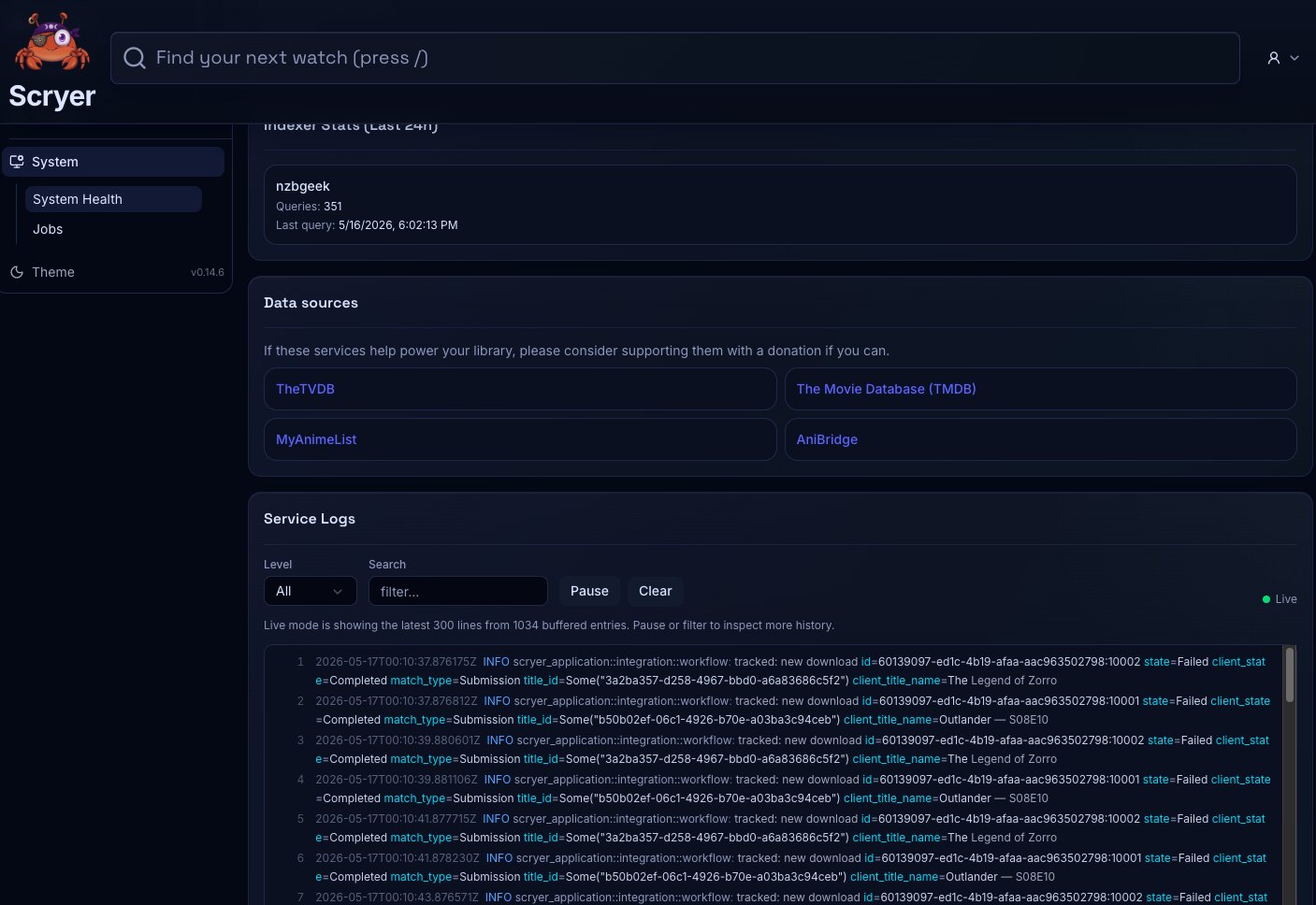
(Click to Zoom Image)
Open Original
Working In System Overview
Section titled “Working In System Overview”If multiple unrelated screens are behaving oddly at once, start here — a single instance health warning often explains symptoms across different parts of the app before you trace each one individually.
If you just completed an upgrade, check here before doing anything else to confirm the instance came up healthy and no warnings are waiting for your attention.
- Review health checks and warnings.
- Check version or status details where surfaced.
- Open related settings pages from actionable warnings.
- Compare status with recent Activity History.
- Check health after installation or upgrade.
- Review warnings before changing provider or library settings.
- Confirm the instance is healthy before running large maintenance jobs.
- Re-check this page after fixing a system issue to confirm the warning or degraded state is actually gone.
Related Concepts
Section titled “Related Concepts”- System Jobs — background job list; open after reviewing warnings to check whether a slow or failed job is the cause
- Activity History — durable log of completed operations; compare with status warnings to understand recent operational context
- Upgrading — instructions for moving to a newer build; the overview is the first health check after an upgrade
- Settings — global settings hub; actionable warnings in the overview often point to specific settings pages