Anime Library Settings
Use Anime Library settings to tell Scryer where your managed anime folders and episodes live.
- To access: Anime → Settings → Library
- To view: Requires
manageCatalogSettingsapp permission - Also visible to: Also accept
manageSystemSettings
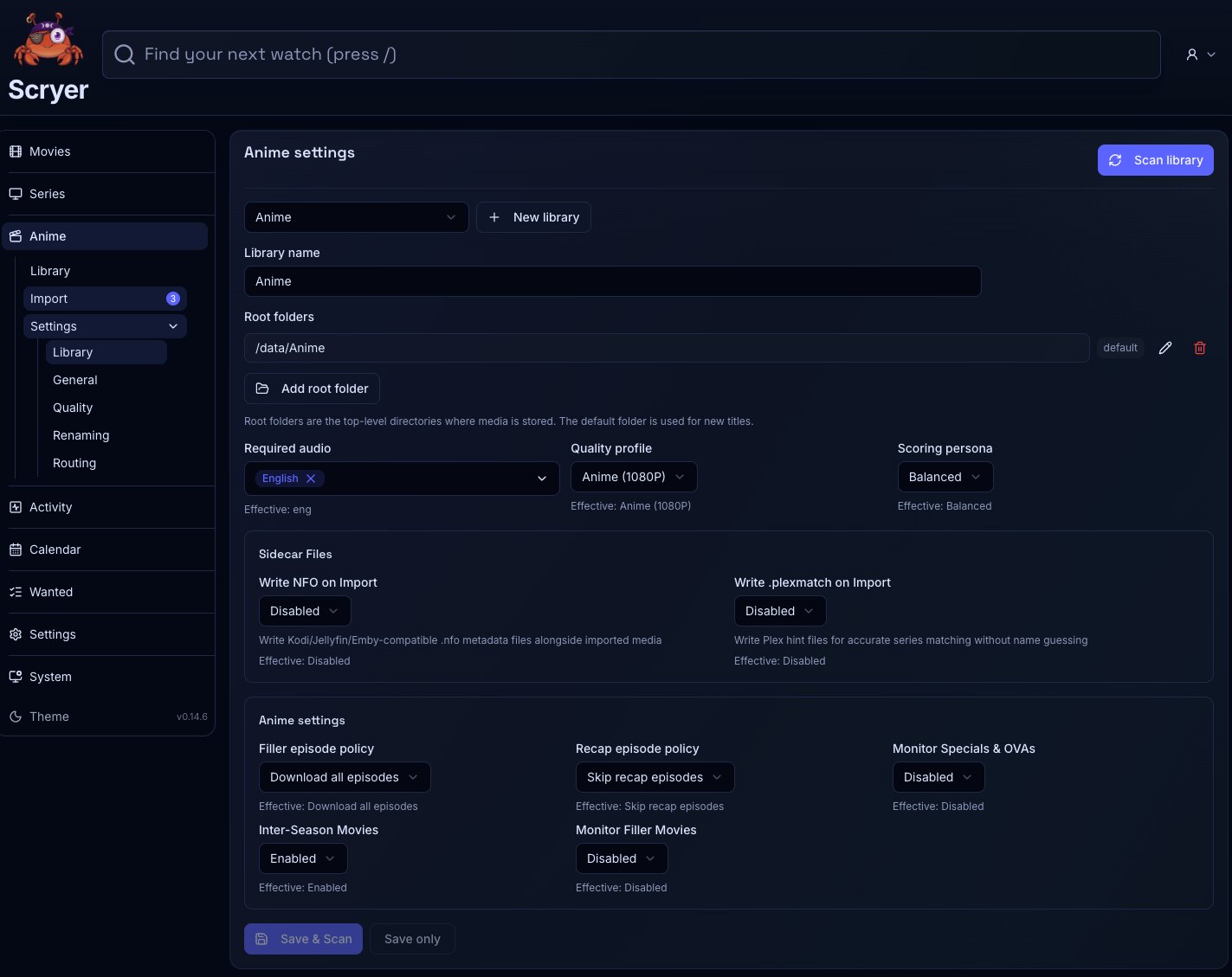
(Click to Zoom Image)
Open Original
Working In Library Settings
Section titled “Working In Library Settings”If Scryer isn’t finding anime files you know exist on disk, check that the root path here matches what Scryer can see — in Docker, container paths often differ from host paths.
If you’re adding a new storage location for anime, add the root path here before adding titles that should live there. Scryer only scans paths it knows about.
- Add, edit, or remove anime library roots.
- Set the default root for new anime titles.
- Review scan behavior for anime folders, seasons, specials, and episodes.
- Check that root paths match the host or container paths Scryer actually sees.
- Add a root path before adding new anime titles.
- Correct a container mount after Scryer reports missing folders.
- Run a scan after moving episodes into a managed root.
- Split anime libraries when storage layout, ownership, or access policy should differ by root.
Related Concepts
Section titled “Related Concepts”- Library Layout — recommended path layout for mounting roots into Scryer from Docker or the host
- Anime Import — import queue for anime files; run a scan after adding or correcting a root to surface new files
- Permissions And Navigation — how access grants control which library roots and pages you can reach