Import
Movie Import is where you resolve movie import work that needs your decision.
- To access: Movies → Import in the left sidebar — only visible when pending work exists
- To view: Requires
resolveImportslibrary permission - Also visible to: Also require
manageCatalogSettingsormanageSystemSettings
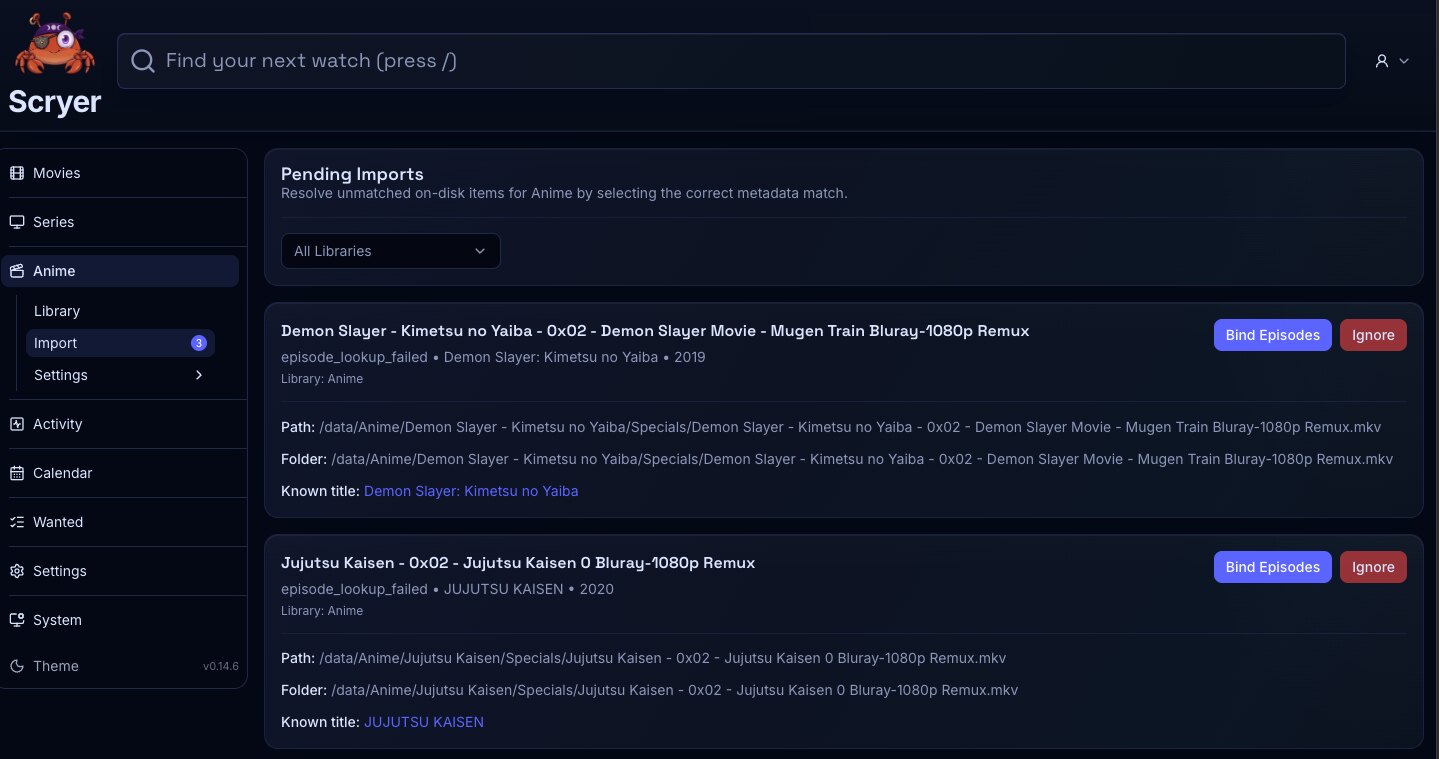
(Click to Zoom Image)
Open Original
Resolving Import Rows
Section titled “Resolving Import Rows”If files have downloaded but aren’t appearing in the library, check this queue first — Scryer may be waiting for you to confirm the title match and destination before placing the file.
If a row shows the wrong title or destination, correct the metadata before confirming — approving a wrong match moves the file to the wrong place.
If rows keep reappearing after you resolve them, check the library root path and filesystem permissions before resolving again.
- Review the source path, matched title, and proposed destination.
- Change the title match when Scryer selected the wrong title.
- Review the rename result and destination path before confirming a row.
- Fix an unmatched movie by selecting the correct title and confirming the destination folder.
- Hold a row until you’ve corrected a path ownership or naming issue.
- Skip a row that should remain outside Scryer management.
- Confirm the row leaves the queue, then spot-check the title in the Movie Library or Activity History.
Related Concepts
Section titled “Related Concepts”- Import — how Scryer moves completed local items from the staging path into a managed library location
- History — a record of acquisition and import events for a title
- Library Layout — path and mount configuration that determines where imports can land
- Movie Library — the catalog overview to spot-check after resolving an import row
- Activity Import — the cross-facet import queue for reviewing all pending import work
- Activity History — the operational log of completed import and acquisition events